
We've been spending a lot of time on two parts of the control panel you probably use the most: the file manager and editor, and the schedules system. Here's what changed, and why we think you'll like it.
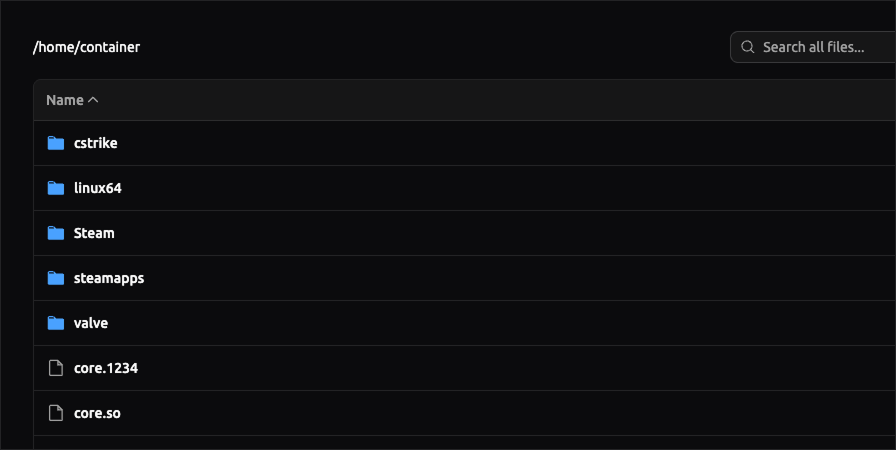
Files & Editor
It's faster now, especially with big folders
We rebuilt the file manager from the ground up. It loads faster, scrolls smoother, and feels lighter to use. The old one had grown a bit creaky over time, and this gives us a much better base to keep improving from.
The biggest practical win: if you've ever tried to open a folder with thousands of files, you know it could really hurt your browser. Not anymore. Files now load in as you scroll, so even the biggest folders feel snappy.
Multiple files also upload at the same time instead of waiting in line. And if an upload gets interrupted, it picks back up where it left off instead of starting over. Big folder transfers finish much quicker now.
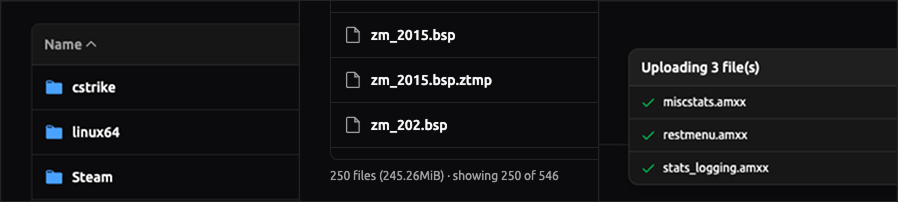
Getting around feels quicker
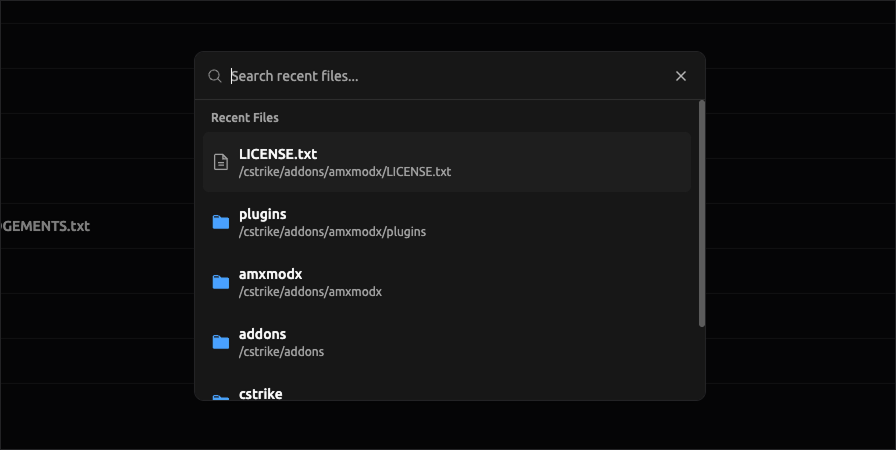
Press Ctrl+P (or ⌘P on Mac) anywhere in the file manager or editor, and you'll get a quick way to jump straight to any file you've recently opened. No more clicking through folders to find that one config you keep editing.
You can also drag a file onto the "up one folder" row to move it up, or drop it onto any folder name in the path bar at the top to jump it up several levels at once. Small thing, but it saves a surprising amount of clicking.
The navigation bar at the top of the editor now matches the file manager. Same look, same search, same quick actions. Switching between browsing files and editing them feels seamless.
A bunch of small quality of life things
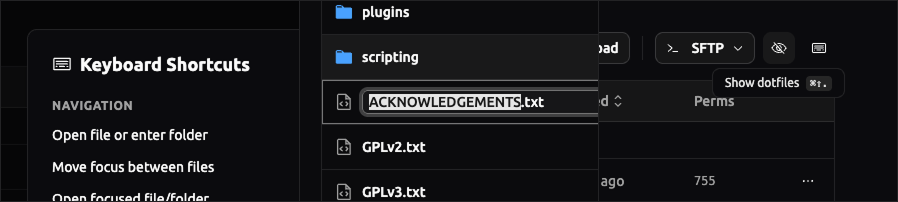
Renaming is easier. Double-click a filename to rename it right where it sits. Or if you like keyboard shortcuts, press R or F2 with a file selected. Either way, no more popup windows.
Hidden files stay out of the way. System and hidden files are tucked away by default now, so your view stays focused on what you actually need to see. When you do want them back, hit the eye icon or press Ctrl+Shift+. (or ⌘⇧. on Mac) and they'll reappear.
Quick image preview. Click an image and you'll see it right there. No need to download it first or open another tab.
SFTP details, one click away. We moved your SFTP connection details into the file manager toolbar where they're easy to find. Copy them in one click, or launch your SFTP app straight from the menu.
The editor recognises more config files. It now colour-codes most game server config files automatically. Easier to read, easier to spot mistakes, easier to make changes.
Forgot a shortcut? Just ask. Press ? anywhere in the file manager and a list of every shortcut pops up. We use it ourselves all the time.
Smoother when things go sideways
When you're moving files around, the action bar at the bottom doesn't push the rest of the page around anymore. It just floats neatly into view and out again. Less jumpy, more pleasant.
And if the file manager can't reach your server for some reason, you'll see a clear message telling you what's happening. No more staring at a spinner that never stops.
Schedules That Run on Time
Pick a timezone that makes sense for you
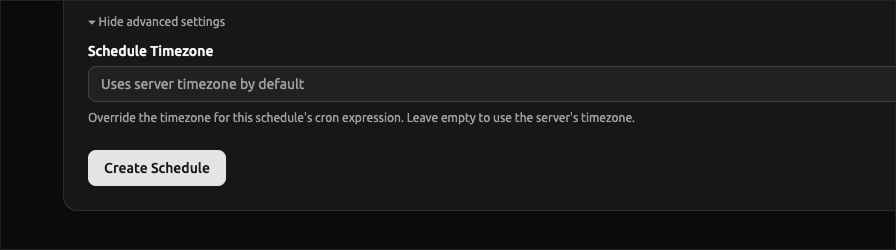
Schedules now run at the time you actually set them. Each server has its own timezone, and if you want a specific schedule to run on a different one, you can set that too. Useful if your team or your players are spread across the world.
We also reworked how schedules calculate their next run, so they stay on the correct local time even when the clocks change for daylight savings. Your 3am backup runs at 3am in spring, summer, autumn, and winter. No surprises.
Fewer surprises
There was a long-standing issue where a schedule could sometimes run twice in a row. That's fixed. Every run now happens exactly once, when it's supposed to.
Every schedule now also has an Activity tab where you can see every past run, whether it worked, and how long it took. Helpful when you're trying to figure out what happened last night while you were asleep.
Try it out
Both of these are live in the control panel right now. Open any server, head into Files or Schedules, and have a look around. If something feels off, or there's something you wish worked differently, tell us. We read everything.