
How to connect to a CS 1.6 server by IP and add it to favourites
Type connect with the IP and port in the console, or add the address to your favourites. Covers passwords, ports and the favourites bug.
- Audience
- New to running a server
- Last checked
- Steps
- 6
- Reading time
- 2 min
- On Hostsrc
- Includes the steps for a Hostsrc server
To join a CS 1.6 server by IP, open the console and type connect followed by the address and port. Always include the port after a colon. Without it, the game tries port 27015.
connect 203.0.113.24:27042To find the server again later, add the same address to your favourites in the server browser.
On Hostsrc
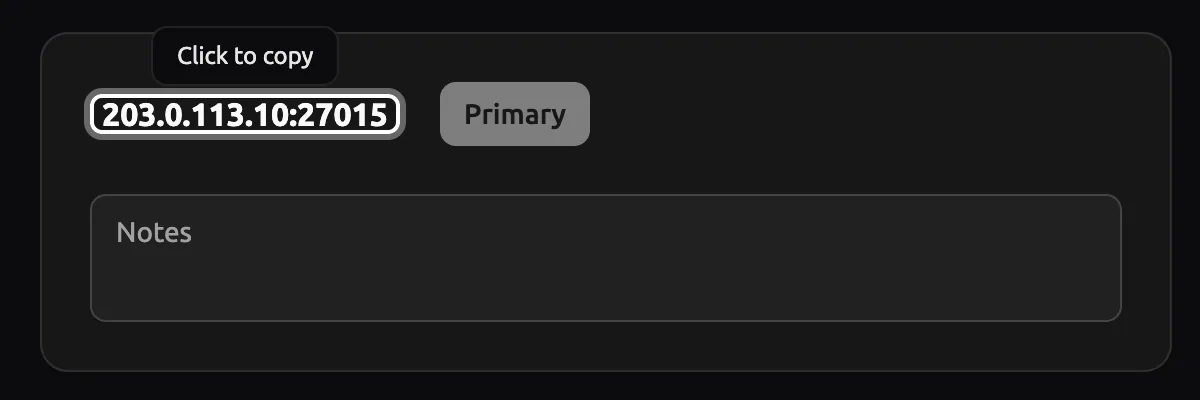
A server with a dedicated IPv4 uses port 27015. A server without one shares an address with other servers and gets a random port, so always share the full address with the port. In the control panel, open Network and click the address to copy it with its port.
Before you start
- The server's address and port, such as
203.0.113.24:27042. - The server password, if it has one.
Steps
Step 4: Add the server to your favourites
Open Find Servers from the main menu and go to the Favorites tab. Click Add a Server, type the address with the port, then click Find games at this address.... Select the server in the results and click Add selected game server to favorites.
Warning
Don't double-click the server in that list. A long-standing bug adds it on port 27015 instead of its real port, so the favourite points at the wrong server.
Troubleshooting
"Connection failed after 4 retries"
The game got no answer. Check the port first, because a missing or wrong port is the usual cause. Then check that the server is running and that the address has no typo or extra space.
You joined a different server than expected
The address was saved without its port, or the favourite was added by double-clicking. Remove the favourite and add it again with steps 4 or 5.
"The password you entered was incorrect" but it's right
Set the password before connecting, as in step 3. Joining from your favourites also shows the password prompt.
Links
- Add server browser bug (Half-Life issue 18) (external site, opens in a new tab)
Valve's issue tracker, the favourites port bug
- Error connecting to password-protected servers (Half-Life issue 3593) (external site, opens in a new tab)
Valve's issue tracker, the password workaround
- Counter-Strike 1.6 server hosting
shared and dedicated IPv4 addresses on each Hostsrc plan
Counter-Strike 1.6 server hosting
From €5.99/month for 14 players
Frankfurt or Bucharest. Final price, no VAT added.
Build my serverStart a paid test from €1.99Discord
Ask other admins and our team.
Join our Discord (external site, opens in a new tab)Related guides
Play CS 1.6 with friends without Hamachi or Radmin VPN
Run the server at an address your friends can reach, share the IP and port, and keep strangers out with a password or private access.
6 steps4 min readNew to running a serverOn Hostsrc
How to add an admin to a CS 1.6 server with users.ini
One line in users.ini makes a player an admin. Use their SteamID and the "ce" account flags, then reload admins. Includes the full flags table.
5 steps4 min readNew to running a serverOn Hostsrc
What FastDL is and how custom content downloads in CS 1.6
FastDL sends custom maps, models and sounds to players over HTTP instead of through the game server. How it works, how to set it up and what to check.
5 steps4 min readOn Hostsrc